Professional Inventory & Loot System For Unity
A downloadable asset pack
================================================================================
PPalAssets - Professional Inventory & Loot System
Version 1.0
================================================================================
TABLE OF CONTENTS
================================================================================
1. Overview
2. Key Features
3. Project Structure
4. Quick Start Guide (Step-by-Step Tutorial)
5. Manual Setup Guide
6. Script Reference
7. Item Rarity System
8. API Examples
9. Troubleshooting
10. Technical Support
================================================================================
1. OVERVIEW
================================================================================
PPalAssets Inventory & Loot System is a high-performance, modular framework
designed for developers who need a robust item management solution. Built with
SOLID principles and ScriptableObject architecture, it offers a scalable
foundation for RPG, Survival, and Action-Adventure titles.
Developed by: PPalAssets
Contact: mehmetulker011@gmail.com
Unity Version: 2021.3 LTS and higher (Built-in, URP & HDRP compatible)
================================================================================
2. KEY FEATURES
================================================================================
CORE LOGIC:
-----------
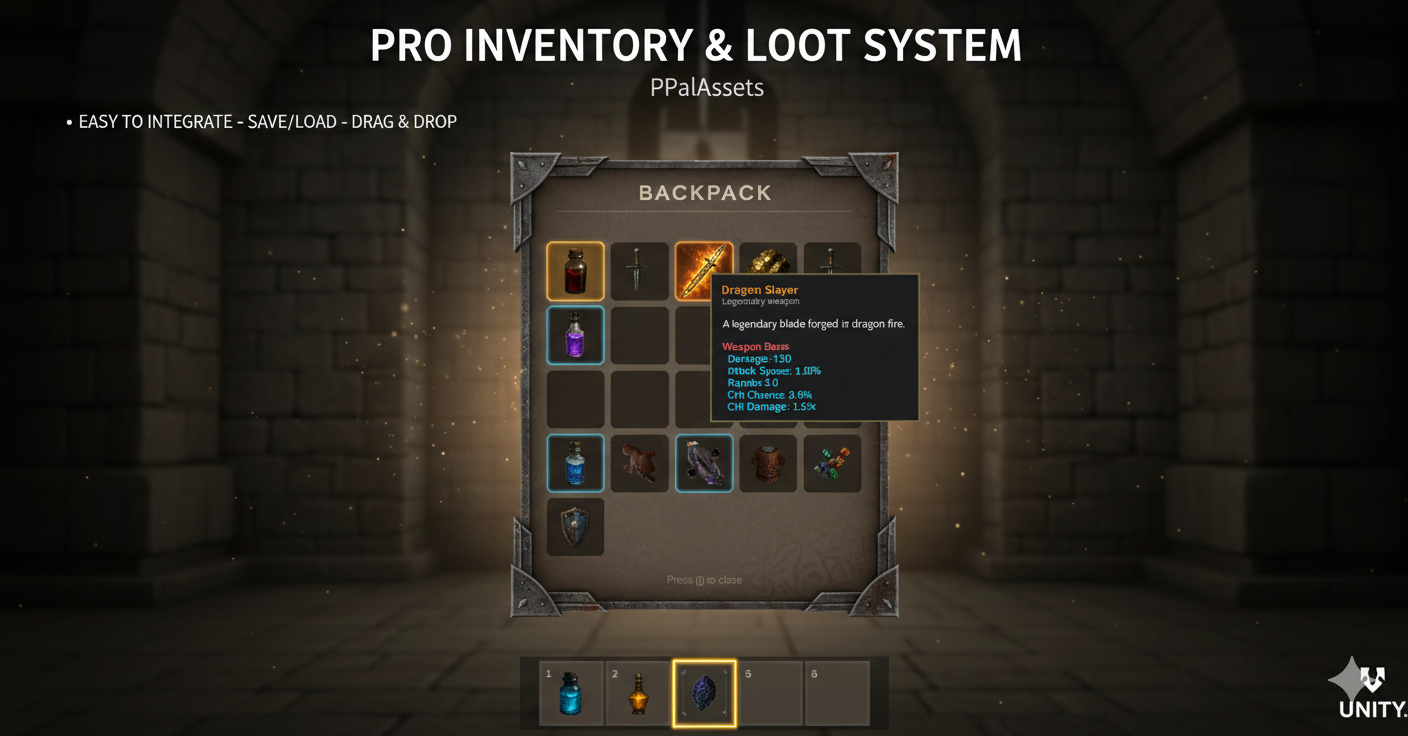
• Advanced Stacking - Handles partial stacks and overflow automatically
• Swap & Merge - Intelligent drag-and-drop behavior for slot management
• Type Safety - Specialized data classes for Weapons, Consumables, Materials
UI & INTERACTION:
-----------------
• Event-Driven UI - Decoupled architecture using C# Actions for zero lag
• Hover Tooltips - Dynamic text generation based on item properties
• Responsive Grid - Fully customizable layout using Unity Auto-Layout
• Hotbar System - Quick access slots with keyboard shortcuts (1-5)
PERSISTENCE & LOOT:
-------------------
• JSON Storage - Lightweight save system using Application.persistentDataPath
• Weighted Loot - Drop items based on probability curves and rarity tiers
• Auto Save/Load - Optional automatic persistence on scene changes
================================================================================
3. PROJECT STRUCTURE
================================================================================
PPalAssets/InventorySystem/
│
├── Data/ # ScriptableObject Item Assets & Database
│ ├── ItemDatabase.asset # Central item registry
│ └── Items/ # Individual item definitions
│
├── Icons/ # Professional Sprite Assets (PNG format)
│
├── Prefabs/ # Ready-to-use UI & Loot Prefabs
│ └── InventorySlot.prefab # Drag-and-drop slot prefab
│
├── Scene/ # Demo scene with full setup
│ └── SampleScene.unity
│
├── Scripts/
│ ├── Core/ # Logic, Enums, and Base Classes
│ │ ├── Data/ # ItemData, WeaponData, ConsumableData, etc.
│ │ ├── Enums/ # ItemType, ItemRarity, StatType
│ │ └── Inventory/ # InventorySystem, InventorySlot
│ │
│ ├── UI/ # Canvas Management and Slot Handlers
│ │ ├── InventoryUI.cs # Main inventory panel controller
│ │ ├── InventorySlotUI.cs # Individual slot behavior
│ │ ├── HotbarUI.cs # Quick access bar
│ │ └── TooltipSystem.cs # Hover information display
│ │
│ ├── SaveLoad/ # Persistence Management
│ │ ├── SaveManager.cs # JSON save/load operations
│ │ └── ItemDatabase.cs # Item ID lookup system
│ │
│ ├── Loot/ # Weighted Drop Logic
│ │ ├── LootTable.cs # Drop probability configuration
│ │ ├── LootDropper.cs # Enemy/chest drop handler
│ │ └── LootPickup.cs # World item pickup
│ │
│ └── Demo/ # Example implementation
│ └── InventoryDemo.cs # Test controls and auto-generation
│
├── UI/ # UI texture assets
│
└── Editor/ # Custom Menu Tools
├── InventorySetupEditor.cs
└── CreateSlotPrefab.cs
================================================================================
4. QUICK START GUIDE (Step-by-Step Tutorial)
================================================================================
STEP 1: Import the Package
--------------------------
1. Download the package from Unity Asset Store
2. Import all files into your Unity project
3. Wait for compilation to complete
STEP 2: Open the Demo Scene
---------------------------
1. Navigate to: Assets/PPalAssets/InventorySystem/Scene/
2. Double-click "SampleScene.unity" to open
3. Press Play to test the inventory system
STEP 3: Automatic Setup in Your Own Scene
-----------------------------------------
1. Open your target scene
2. Go to menu: Tools > PPalAssets Inventory > Setup Inventory Scene
3. Click "Setup Complete Inventory UI"
4. The system will automatically create:
- InventoryManager (with InventorySystem component)
- Canvas with InventoryUI
- Hotbar with 5 quick slots
- Tooltip system
- EventSystem (if not present)
STEP 4: Configure the Item Database
------------------------------------
1. Navigate to: Assets/PPalAssets/InventorySystem/Data/
2. Select "ItemDatabase.asset"
3. In the Inspector, click "Scan Project for Items"
4. All ItemData assets will be automatically registered
STEP 5: Test Your Setup
-----------------------
1. Press Play in the Unity Editor
2. Press 'I' to toggle the inventory panel
3. Press 'R' to add a random item
4. Press '1-5' to select hotbar slots
5. Drag items between slots to organize
================================================================================
5. MANUAL SETUP GUIDE
================================================================================
If you prefer manual configuration, follow this hierarchy structure:
REQUIRED HIERARCHY:
-------------------
Scene Root
├── Main Camera
├── EventSystem (with InputSystemUIInputModule)
├── InventoryManager
│ ├── InventorySystem.cs
│ ├── SaveManager.cs
│ └── InventoryDemo.cs (optional, for testing)
│
└── Canvas (Screen Space - Overlay)
├── InventoryCanvas
│ ├── InventoryUI.cs
│ ├── DarkOverlay (Image, semi-transparent black)
│ └── InventoryPanel
│ ├── TitleText (TextMeshPro)
│ ├── SlotsContainer (GridLayoutGroup)
│ │ └── Slot_0...Slot_N (InventorySlotUI prefabs)
│ └── CloseHint (TextMeshPro)
│
├── Hotbar
│ ├── HotbarUI.cs
│ └── HotbarSlot_0...HotbarSlot_4
│
└── TooltipSystem
├── TooltipSystem.cs
└── TooltipPanel
└── TooltipText (TextMeshPro)
COMPONENT CONFIGURATION:
------------------------
InventorySystem.cs:
- _inventorySize: Number of inventory slots (default: 20)
- _itemDatabase: Reference to ItemDatabase.asset
InventoryUI.cs:
- _inventorySystem: Reference to InventorySystem component
- _inventoryPanel: Reference to the panel GameObject
- _slotsContainer: Reference to the GridLayoutGroup transform
- _slotPrefab: Reference to InventorySlot.prefab
SaveManager.cs:
- _inventorySystem: Reference to InventorySystem component
- _itemDatabase: Reference to ItemDatabase.asset
- _autoSaveOnQuit: Enable automatic saving (default: true)
- _autoLoadOnStart: Enable automatic loading (default: true)
================================================================================
6. SCRIPT REFERENCE
================================================================================
CORE CLASSES:
-------------
ItemData (ScriptableObject)
Base class for all items. Contains:
- ItemId: Unique identifier string
- ItemName: Display name
- Description: Tooltip text
- Icon: Sprite reference
- MaxStackSize: Maximum items per slot
- ItemType: Weapon, Consumable, Material, etc.
- Rarity: Common, Uncommon, Rare, Epic, Legendary, Mythic
- BuyPrice/SellPrice: Economy values
WeaponData : ItemData
- BaseDamage: Weapon damage value
- AttackSpeed: Attacks per second
- CriticalChance: Crit percentage
- CriticalDamage: Crit multiplier
- Range: Attack range
ConsumableData : ItemData
- EffectValue: Healing/mana amount
- Duration: Buff duration in seconds
- ConsumableType: HealthPotion, ManaPotion, Buff
MaterialData : ItemData
- CraftingCategory: Ore, Herb, Gem, etc.
InventorySlot
- ItemData: Current item in slot
- StackCount: Current stack amount
- IsEmpty: Check if slot is empty
- SetItem(): Assign item to slot
- Clear(): Remove item from slot
- AddToStack(): Add quantity
- RemoveFromStack(): Remove quantity
InventorySystem
- Slots: List of all inventory slots
- InventorySize: Total slot count
- AddItem(): Add item with quantity
- RemoveItem(): Remove item with quantity
- HasItem(): Check if item exists
- GetSlot(): Get slot by index
- ClearAll(): Empty entire inventory
================================================================================
7. ITEM RARITY SYSTEM
================================================================================
The system includes 6 rarity tiers with customizable colors:
Rarity | Default Color | Hex Code | Typical Drop Rate
-------------|---------------|-----------|------------------
Common | Gray | #9D9D9D | 50-60%
Uncommon | Green | #1EFF00 | 25-30%
Rare | Blue | #0070FF | 10-15%
Epic | Purple | #A335EE | 3-5%
Legendary | Orange | #FF8000 | 1-2%
Mythic | Red | #FF0000 | 0.1-0.5%
To customize colors, modify the GetRarityColor() method in InventorySlotUI.cs
================================================================================
8. API EXAMPLES
================================================================================
ADDING ITEMS:
-------------
// Add a single item
InventorySystem.Instance.AddItem(healthPotionData, 1);
// Add multiple items (handles stacking automatically)
InventorySystem.Instance.AddItem(ironOreData, 50);
// Add item and check if successful
bool added = InventorySystem.Instance.AddItem(swordData, 1);
if (!added) Debug.Log("Inventory full!");
REMOVING ITEMS:
---------------
// Remove specific quantity
InventorySystem.Instance.RemoveItem(healthPotionData, 5);
// Remove from specific slot
InventorySystem.Instance.GetSlot(0).RemoveFromStack(1);
CHECKING ITEMS:
---------------
// Check if player has item
bool hasKey = InventorySystem.Instance.HasItem(keyItemData, 1);
// Get total count of item type
int potionCount = InventorySystem.Instance.GetItemCount(healthPotionData);
SAVE/LOAD:
----------
// Manual save
SaveManager saveManager = FindObjectOfType<SaveManager>();
saveManager.SaveInventory();
// Manual load
saveManager.LoadInventory();
// Delete save file
saveManager.DeleteSave();
LOOT DROPS:
-----------
// Setup loot table in Inspector, then call:
LootDropper dropper = enemy.GetComponent<LootDropper>();
dropper.DropLoot(enemy.transform.position);
================================================================================
9. TROUBLESHOOTING
================================================================================
PROBLEM: Drag and drop is not responding
SOLUTION:
1. Ensure an 'EventSystem' object exists in your scene
2. Verify the Canvas has a 'GraphicRaycaster' component
3. Check that UI elements have 'Raycast Target' enabled
PROBLEM: Items disappear after reloading the game
SOLUTION:
1. Verify all items are registered in ItemDatabase.asset
2. Click "Scan Project for Items" in the ItemDatabase inspector
3. Ensure SaveManager has correct references assigned
PROBLEM: Tooltip not showing
SOLUTION:
1. Check TooltipSystem component is in the scene
2. Verify TooltipPanel and TooltipText references are assigned
3. Ensure InventorySlotUI has TooltipSystem reference
PROBLEM: Hotbar not syncing with inventory
SOLUTION:
1. Verify HotbarUI has reference to InventorySystem
2. Check that hotbar slot indices match inventory slots
PROBLEM: Items not stacking correctly
SOLUTION:
1. Verify MaxStackSize is set correctly on ItemData
2. Ensure items have matching ItemId values
3. Check that ItemType allows stacking
================================================================================
10. TECHNICAL SUPPORT
================================================================================
We are committed to providing excellent support and continuous updates.
For bugs, feature requests, or integration assistance:
Email: mehmetulker011@gmail.com
When reporting issues, please include:
- Unity version
- Package version
- Steps to reproduce
- Console error messages (if any)
- Screenshots (if applicable)
================================================================================
Thank you for choosing PPalAssets Inventory System!
================================================================================
Leave a comment
Log in with itch.io to leave a comment.